


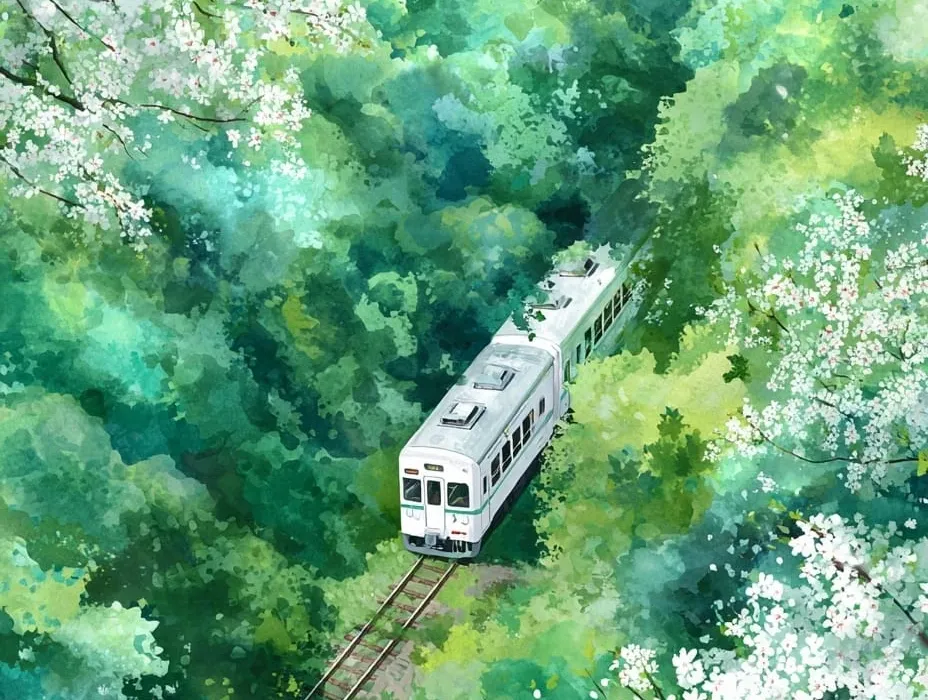

When creating stunning visuals with AI, the difference between a good image and a great one often lies in technical parameters you define. Specifically, understanding how resolution and aspect ratio work together is crucial for maximizing visual impact.
This guide breaks down these concepts and shows you how to integrate them into your prompts for optimal results.
Resolution vs. aspect ratio: what you need to know
While often confused, these terms refer to two very distinct properties of your final image. Getting them right ensures your image fits its intended display (e.g., a website header, a mobile screen, or a print).
Code
--ar 16:9 // standard widescreen
--ar 3:4 // common for portrait orientation
--ar 1:1 // perfect square for social media
The aspect ratio is the relationship between the width and the height of an image, expressed as a ratio (e.g., 16 units wide for every 9 units high). Resolution, on the other hand, is the actual count of pixels in that image (e.g., $1920 \times 1080$ pixels).
How to choose the right ratio for your platform
Selecting the correct aspect ratio should be your first step, as it dictates the composition and framing of the final artwork.
Popular ratios and their ideal uses
- 16:9 (Widescreen): The standard cinematic and computer screen ratio. Best for website banners, YouTube thumbnails, and wide-format landscapes.
- 4:3 (Classic): A common photographic ratio. Great for a more traditional, balanced look, often used in portraits or architectural shots.
- 1:1 (Square): Non-negotiable for platforms like Instagram grid posts or profile pictures, where square cropping is mandatory.
Quote
"An image's aspect ratio defines its story. A 16:9 composition feels epic, while a 1:1 composition feels intimate."
Try to visualize how the AI will frame the scene: a tall ratio will usually place the subject vertically, while a wide ratio will expand the background horizontally.
Experimenting with high resolution and quality
After determining the ratio, you can focus on increasing the resolution and image quality. Many generators use a quality parameter to increase the detail and refinement of the output without drastically changing the ratio.
- Use Quality Parameters: Most models offer a command (like
--quality 2or--Q 2) to dedicate more processing power, resulting in richer textures and fewer artifacts. - Upscaling: Use the built-in upscaling features or external tools (like Gigapixel AI) to increase the final pixel count after the image has been generated in a lower resolution.
- Prompt Detail: High resolution demands high detail in the prompt. Ensure you are describing textures, light sources, and materials if you plan on upscaling.
A high-resolution image with a poor aspect ratio for its purpose will fail to impress. Conversely, a perfect composition in the correct ratio, even at moderate resolution, will always look professional. Start with the ratio, then push the quality.
Comments